You Don't Need Another App: Build a Shortcut Instead
How I used Apple Shortcuts and ChatGPT to build custom mini-apps for my marathon training, Pomodoro breaks, and flute lesson tracking — for free.
There’s an app for that…but why not take back control and make your own?
What even is Shortcuts?
Think of Shortcuts as a way to write mini custom apps for your iPhone. Whether automating daily tasks or creating something entirely new, Shortcuts gives you the power to make your phone truly work for you.
I’ve always been vaguely aware of the “Shortcuts” app on my phone and have had some simple premade ones that I never did much with (like “How many days until _____”), but I only recently really started using them. I was always intimidated by the workflow, and when I tried to make them previously, they often did not work out the way I had hoped for them to and I would get frustrated and give up.
So, what changed?
ChatGPT, dude.
ChatGPT truly is what changed the game for me. Prior to ChatGPT, if I wanted to create my own shortcut from scratch, I had to really try to understand how all of the functions worked and what was even really possible. Luckily, I am married to a wonderful human who is as much of an Apple nerd as I am, but with more technical knowledge; so a lot of the times, I would tell him my idea and he could show me how to do it (or make it for me).
Once I learned that ChatGPT was even better at creating and troubleshooting Shortcuts than my partner is, I was so much more confident to try creating some of my own.
I find that I use Shortcuts as a new solution to problems that I have solved using different media previously.
For example, I found myself encountering situations where in the past, I would make a chart or flashcards or a journal to keep myself organized and complete the task at hand (I think of these as my analog solutions), but I also would find that I am not as effective at keeping up with my physical media these days. This led me to think “okay, but what if I could just tap a button and my phone does it.” When I used to have that thought, my solution was usually “There’s probably an app for that.”
So, why not just download another app?
These days I have found one or a combination of these problems with apps on my phone:
- Doesn’t have the features I want
- Does have the features I want, but also a million other things I don’t want which makes it too complicated and bad
- Forces me to sign up for a membership, giving away my personal information
- Is a paid subscription
- Is “free” but has terrible ads everywhere
- Is tracking in the background without my knowledge
- Is being a general creep (why do you need access to every photo I’ve taken since I started using an iPhone??)
So, what’s the alternative to downloading a single-purpose app? Creating a Shortcut!
I’m going to dive into some problems that I solved with Shortcuts and my process of creating them. I hope that you can find some inspiration and create your own Shortcuts as well!
Shortcut #1: What’s my workout today?
Context
I am a runner and I am training for the Buffalo Half-Marathon this upcoming May 2025. I have mapped out my entire training schedule from now until the race (using ChatGPT as well), and had this beautiful spreadsheet of my whole training plan.
The Problem
I wanted to know what my workout was each day without having to reference the spreadsheet or my calendar. I wanted to tap a button and it would spit out what my workout is.
My Analog Solution
My “analog solution” would have been to print out my spreadsheet, reference it each day and cross off the workout as I complete it. I maybe would have tried to keep a journal or keep this log in my bullet journal, but likely would have stopped using it by March.
The Solution: Creating the Shortcut
To start creating my Shortcut, I first went to ChatGPT and wrote the following prompt:
I want to create an Apple Shortcut that will help me stay on track with my half-marathon training plan. I have the entirety of my plan in an Apple note. When I run the shortcut, I would like it to send me a message with what workout I have scheduled for that day. For example, if I ran the shortcut on January 7th, I would like the message to say "4x400m intervals (1:1 work:rest ratio).
Can you help me create this shortcut?
When writing this prompt, I really visualized what exactly I wanted my phone to do. Did I want it to send me a text or a notification? How would the Shortcut be able to see my training plan?
After sending this prompt, ChatGPT gave me step-by-step instructions on how to accomplish my goal. Here’s an abbreviated version of what it told me to do:
- Organize Your Apple Note
- Create a Shortcut in the Shortcuts App
- Add Actions to Your Shortcut
- Save and Test Your Shortcut
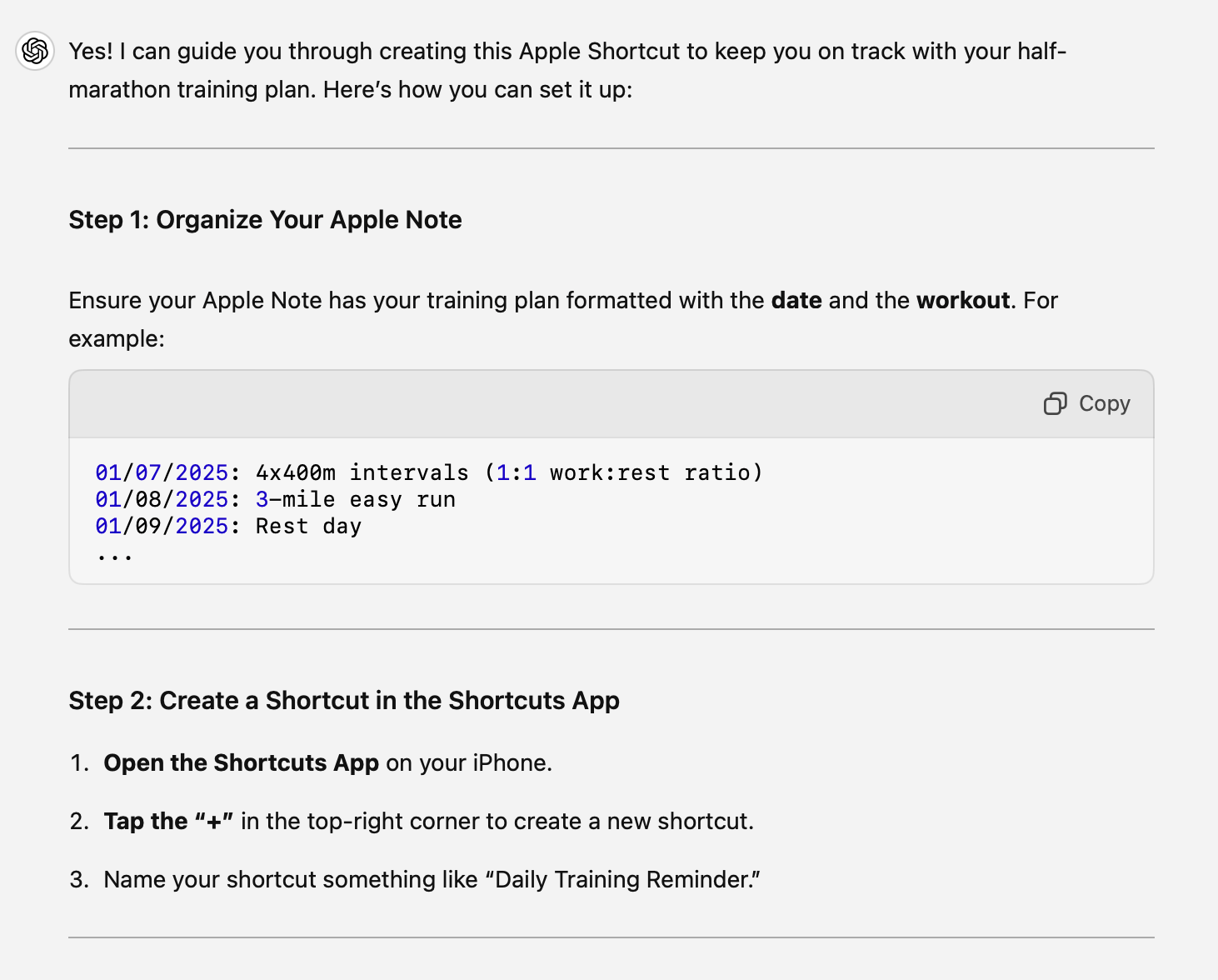
I immediately went to work following the instructions, very much in a similar manner to how I would follow instructions when operating a new machine or assembling furniture.
I started by opening a new chat in ChatGPT and having it reformat my training plan in the way that it requested. I was able to upload the spreadsheet (.CSV) of my plan and ask ChatGPT to reformat it so that I could copy and paste the list into an Apple Note.
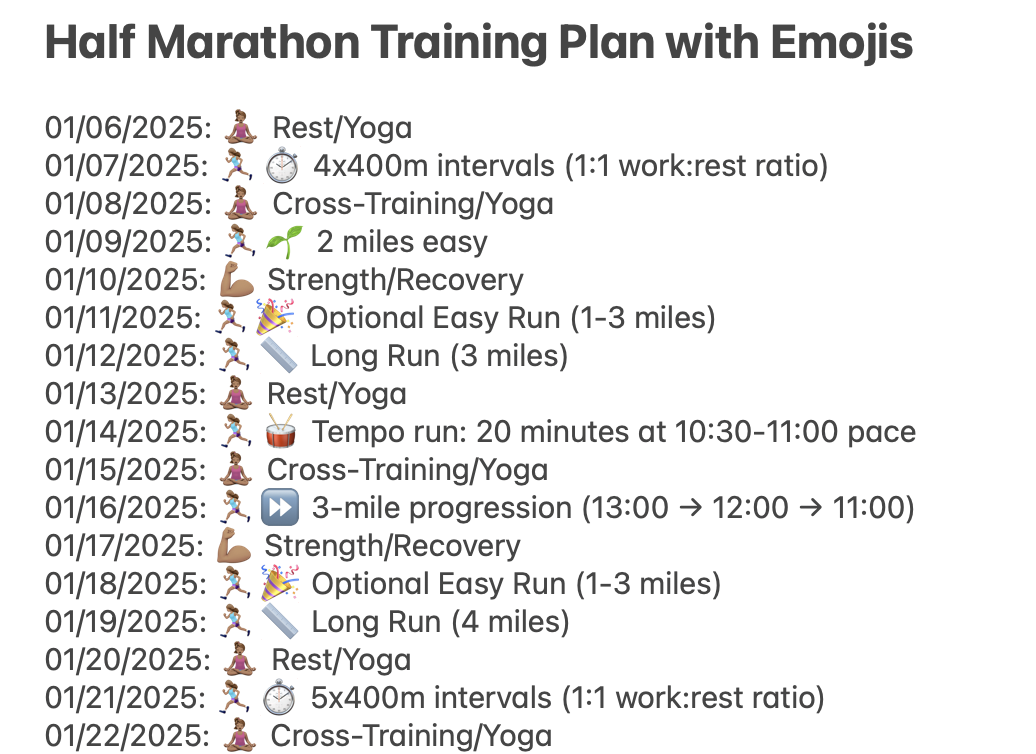 I asked it to add emojis too! 🤗
Then I opened up the Shortcuts app and got to work following the next steps!
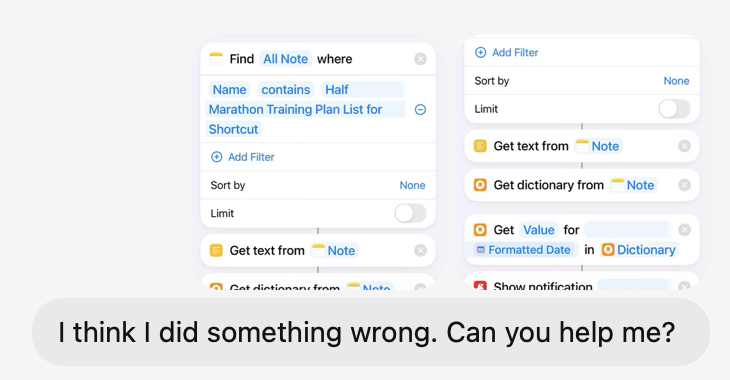
As with all things, it definitely was not perfect on the first try…Or the second try…Or the third… But I repeated this process of showing ChatGPT my work, ChatGPT telling me what I think I did wrong, and then reworking and retesting my Shortcut until I got my final result!
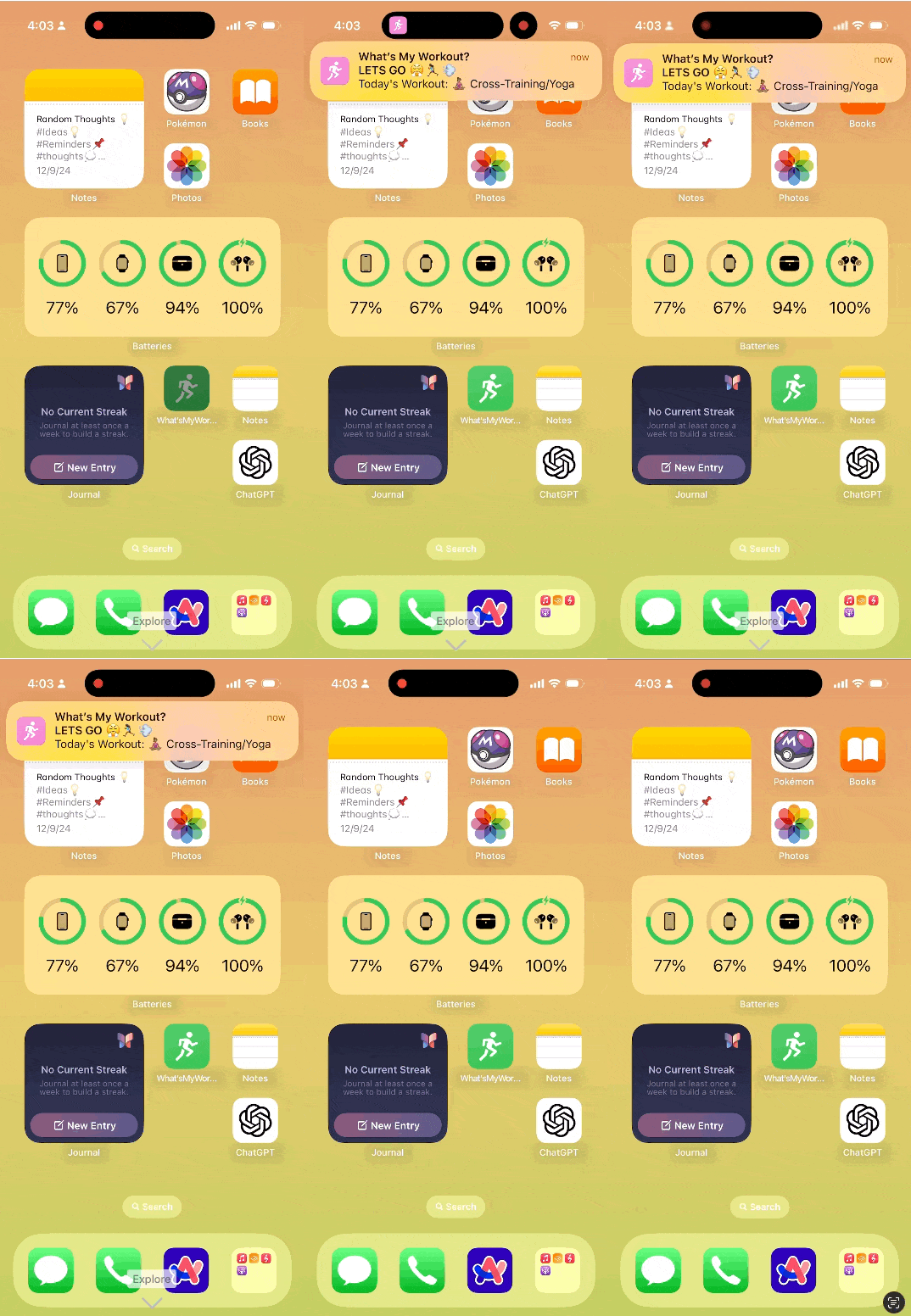 When you tap “What’s My Workout,” the notification appears at the top and shows you what it is!
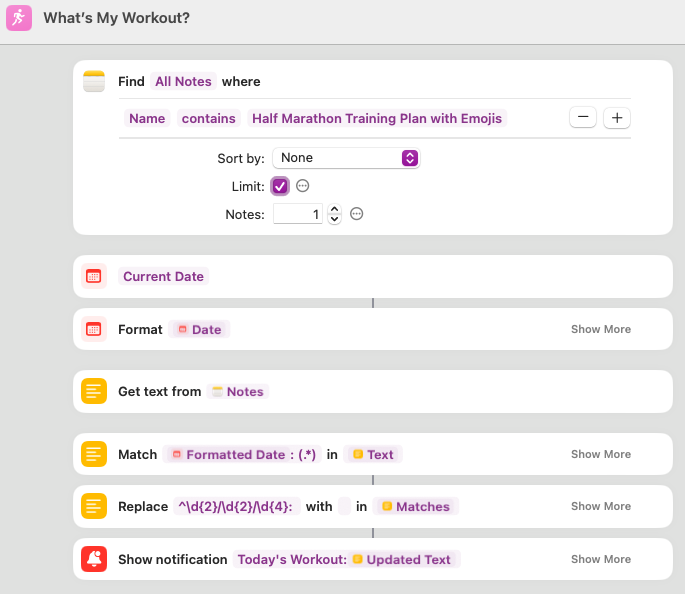 Screenshot was taken on Shortcuts on the Mac
The ✨Updated✨ Final Solution
While writing this post, I continued to tinker with this Shortcut to make it even more customized to my needs. I added functionality to see tomorrow’s workout (because I found myself wanting to more easily look ahead), and added functionality to view the weather forecast for my location. I still need to format the weather data to be useful, but it mostly works!
Tips for Troubleshooting Shortcuts
Don’t give up. This one may seem silly, but honestly not giving up is 80% of programming in my experience. I’m really brought back to my Algebra days, where I would try to solve an equation and miss one thing somewhere and my whole answer was hundreds of numbers off. I look to my wonderful teachers and embrace their attitude of starting with patience, then going back and looking at my work to diagnose where the problem is.
Use the “Quick Look” or “Show Result” function under different steps of your Shortcut. These allow you to see the result directly above where you place the function. This lets you check what your shortcut is outputting before you get the big result at the end.
Don’t be afraid to start a new chat. Sometimes ChatGPT can get really confused if you’ve been chatting for a long time or if you’ve asked it to do too many things in one chat. For example, ChatGPT initially tried to get me to use the “Dictionary” function in this shortcut instead of pulling my data from my existing note. When I started a new chat, I explicitly told the bot I did not want to use the Dictionary function. I found it helpful to take the information about what I wasn’t liking in one ChatGPT chat, and then start a new chat and prompt ChatGPT to not do the thing I didn’t like it doing in the other chat.
Take Screenshots and send them to ChatGPT. I take screenshots of my shortcuts flow as well as any error messages. Be sure to still provide context and be specific about what problem you’re having!
If you have a Mac, try creating the shortcut on your Mac instead of mobile. I have found that editing shortcuts tends to be easier on my Macbook, so sometimes switching up your device can make it easier! Shortcuts will sync across your devices, so you can still use the shortcut you create on your iPhone.
More Uses for Shortcuts
I’ve had a few other scenarios recently that inspired me to create a couple of other shortcuts!
Although the shortcuts are different and are replacing different types of physical media in my life, the process of creating them is very much the same: See the problem, identify a solution, then work with ChatGPT to make it happen.
Shortcut #2: Pomodoro Break
Context
I am a big fan of the Pomodoro Method — a time management method that breaks work into intervals: 25 minutes of work, 5 minutes of break, and 15 minutes of a long break after completing a certain number of work intervals. This is how I work most productively during my day!
Problem
I was having trouble deciding what to do during my breaks. I found that it was hard for me to make a quick decision on what I could accomplish in five minutes, so I often ended up scrolling on my phone, which did not usually help me feel recharged.
My Analog Solution
My analog solution likely would have been to write down ideas on paper and draw them out of a cup, but honestly, I probably wouldn’t have gotten to that and would have continued to have less fulfilling breaks during my workflow.
My Solution
I ended up creating a shortcut that would choose a random activity from a list and set a timer for the time of my break. This made it so that I didn’t have to choose what to do — my phone simply told me what to do!
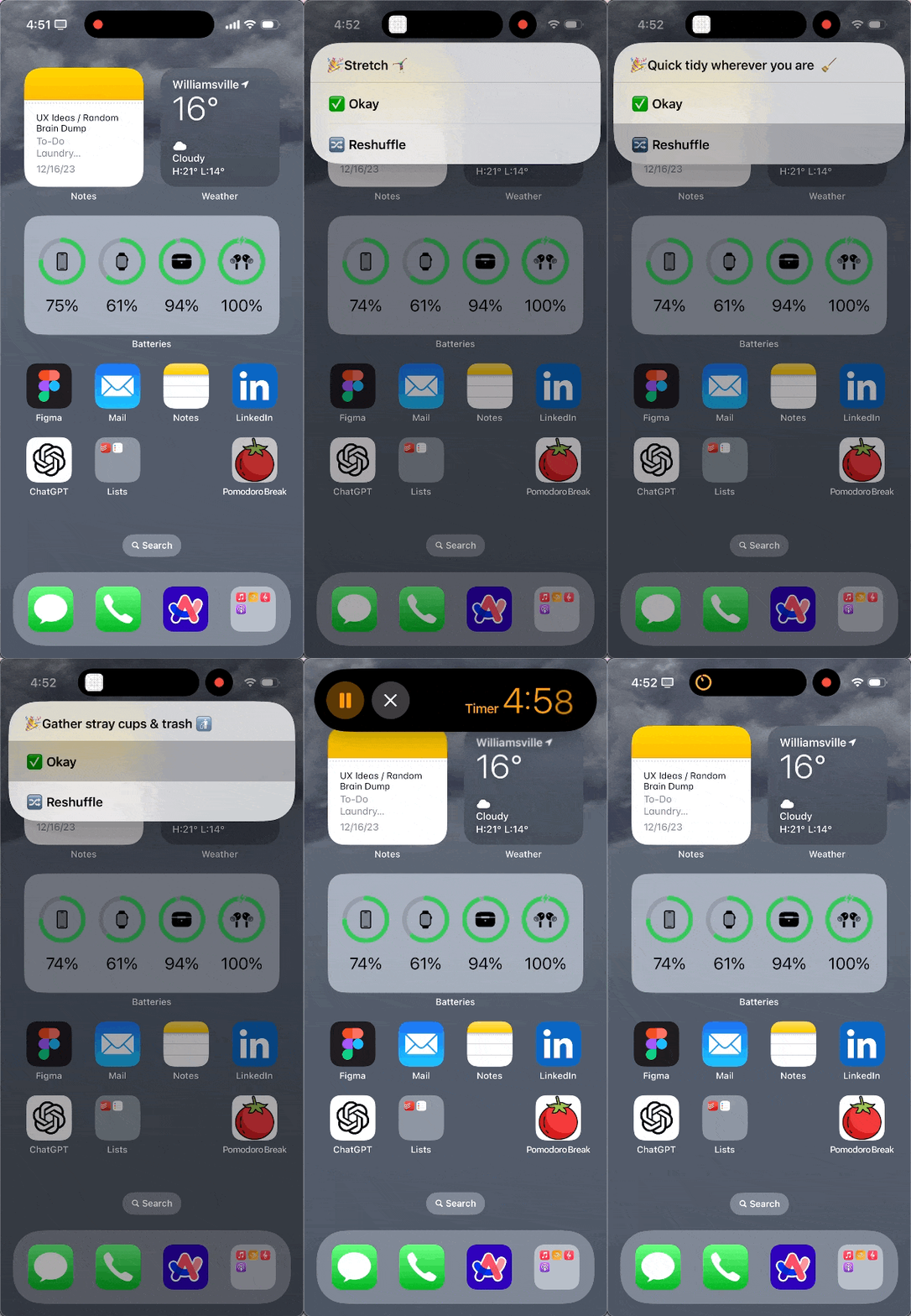
I decided to also add a “reshuffle” option, so that I could choose a different task if the first one wasn’t what I wanted it to be.
The timer was also a later addition; I use the Pomodoro extension for Raycast, so my timers are automatically going on my Macbook, but I found that if I was out dusting the house on a break, I often lost track of time. Setting a timer on my phone was a much more practical way of holding myself accountable during the break time.
This shortcut has been helping me work so much more productively. Taking breaks to move my body really does help my overall productivity!
Shortcut #3: Major Scales Practice
Context
I teach flute lessons to a high school freshman and she is currently working on memorizing all of her scales to prepare for her All-County Band audition. I prefer to choose a random set of scales rather than going in a pattern to keep her on her toes. I also wanted to log her performance on each scale so that I could remember which to come back to and work on again.
Problem
I needed a way to easily choose a random scale and write down a quick rating in a place I would remember for future reference.
My Analog Solution
Normally, I would whip out my stack of flashcards that have the scale name written on them and pick one at random. Then I likely would have written a grade on a piece of paper or notebook or something.
The Solution
I created a shortcut that chose a random scale, then prompted me to rate the performance of the scale out of 5 (5 being best, 1 being the worst). This rating gets logged in a Note in my Apple Notes app.
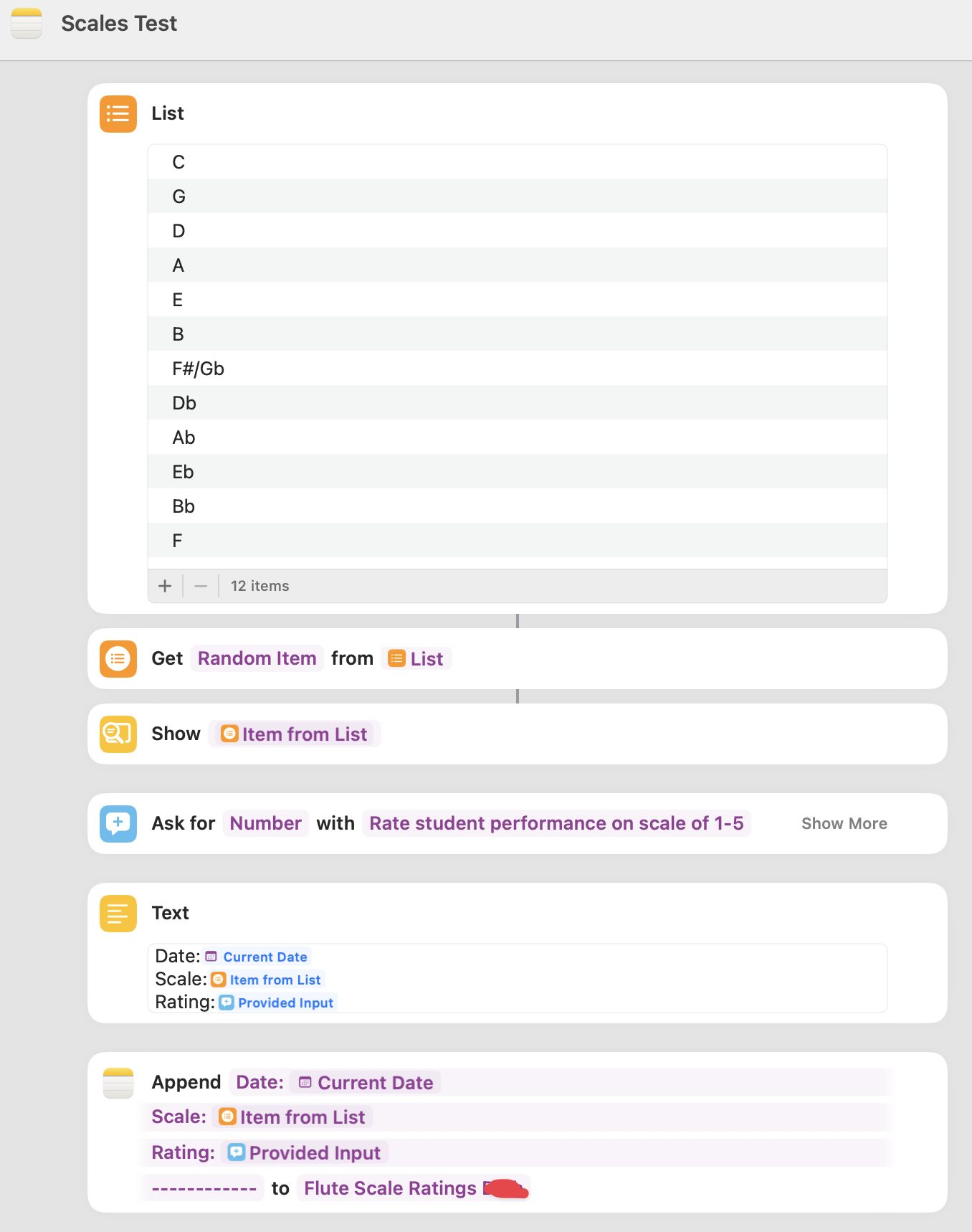
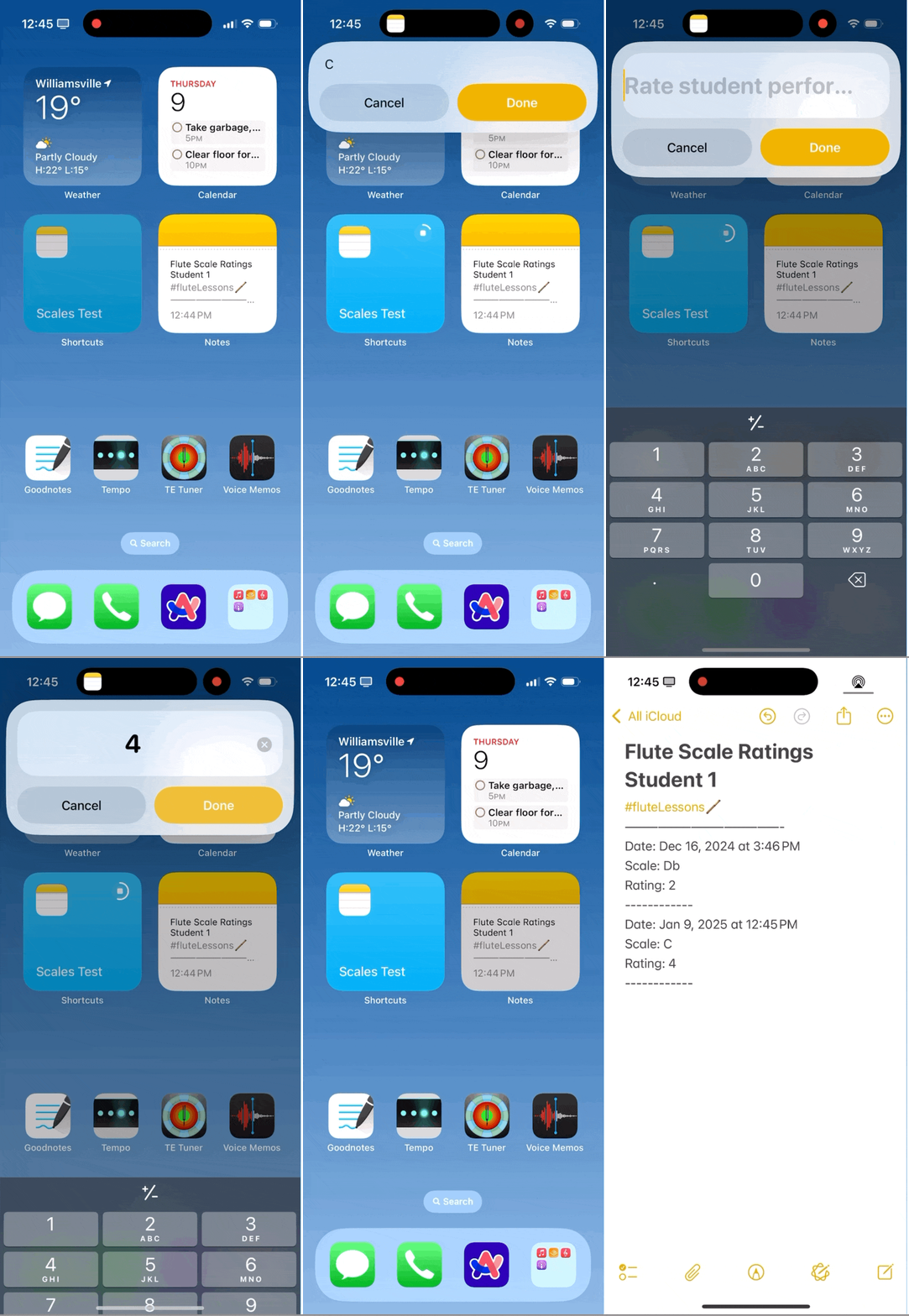
This shortcut uses the “append to note” action, which is one of my favorites. You can dump whatever text you want into the input, and it will automatically add that text to the end of whatever note you have selected!
This is great for keeping logs, journals, or ideas. Highly recommend playing around with it!
Takeaway
Using Shortcuts has really opened my eyes to how powerful I can be with my iPhone. I no longer need to wait for some tech-bro to write an app for me to have to subscribe to in order to accomplish one task; I have the power to create an app that I can interact with exactly how I want to.
And you can too!

Everything I’ve talked about throughout this post is completely free on iPhone. The free tier of ChatGPT is completely capable of helping you if you get stuck.
I encourage you to take back agency of your phone and make it work for you. My phone is my world: it is one of my most expensive and by far most used devices in my life. Shortcuts enables me to use my phone in a way that benefits me, not some random tech company.
What uses for Shortcuts could you see for yourself and your most used device?